Upgrading from a PlayStation 5 (PS5) to a PlayStation 5 Pro (PS5 Pro) invites excitement but also a big question: How do you transfer all your data to the new console efficiently? This guide provides a straightforward explanation on how to safely transfer your profile, games, save data, and media from a PS5 to a PS5 Pro to ensure you can continue your gaming adventures seamlessly on the new hardware.
### Starting the Data Transfer
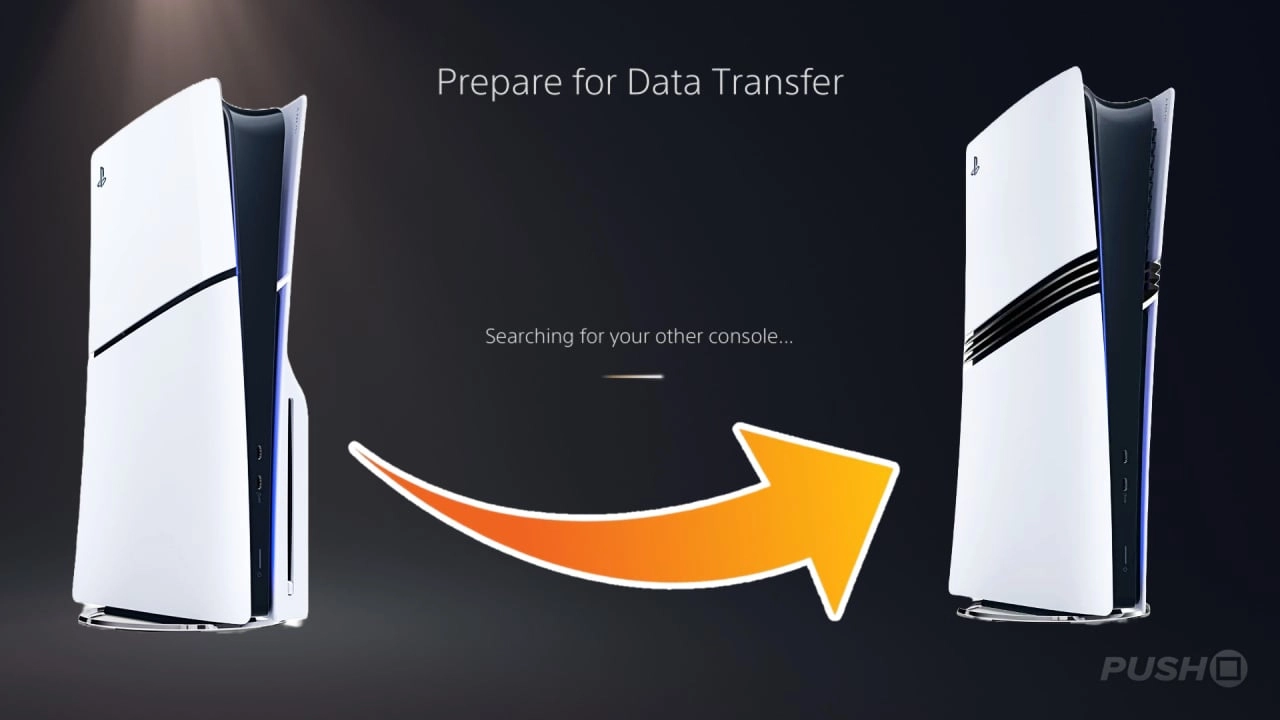
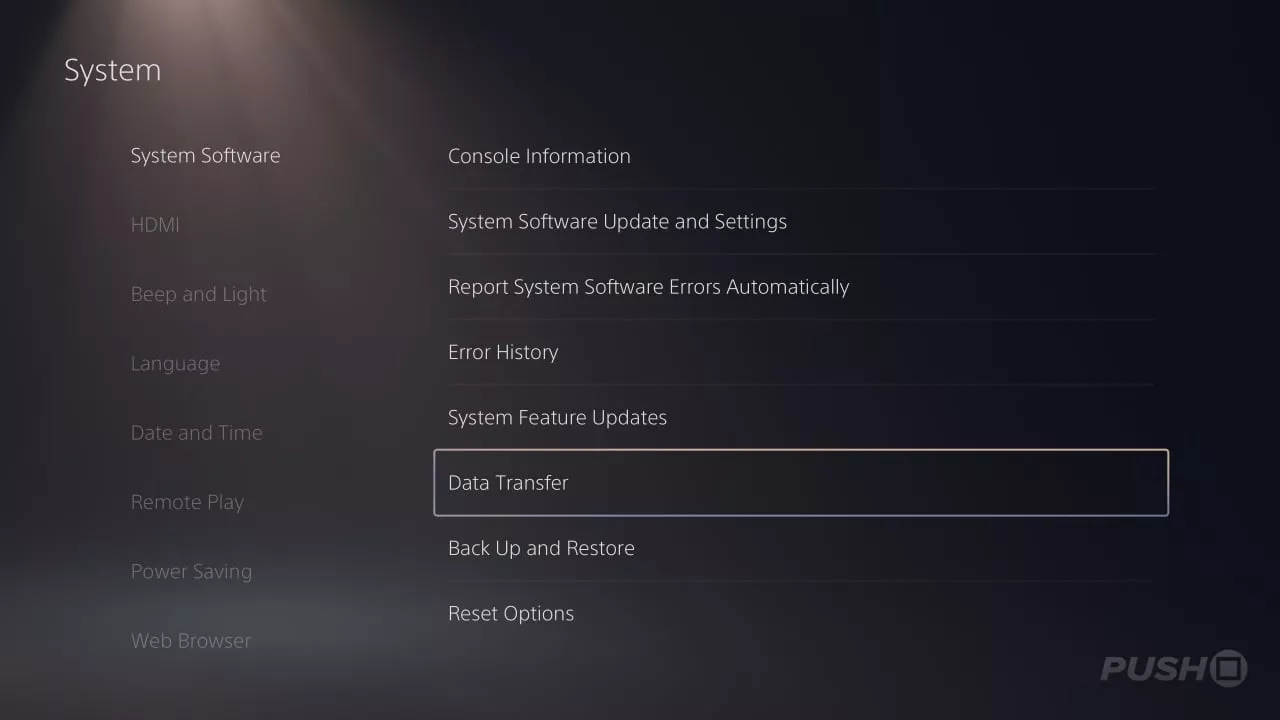
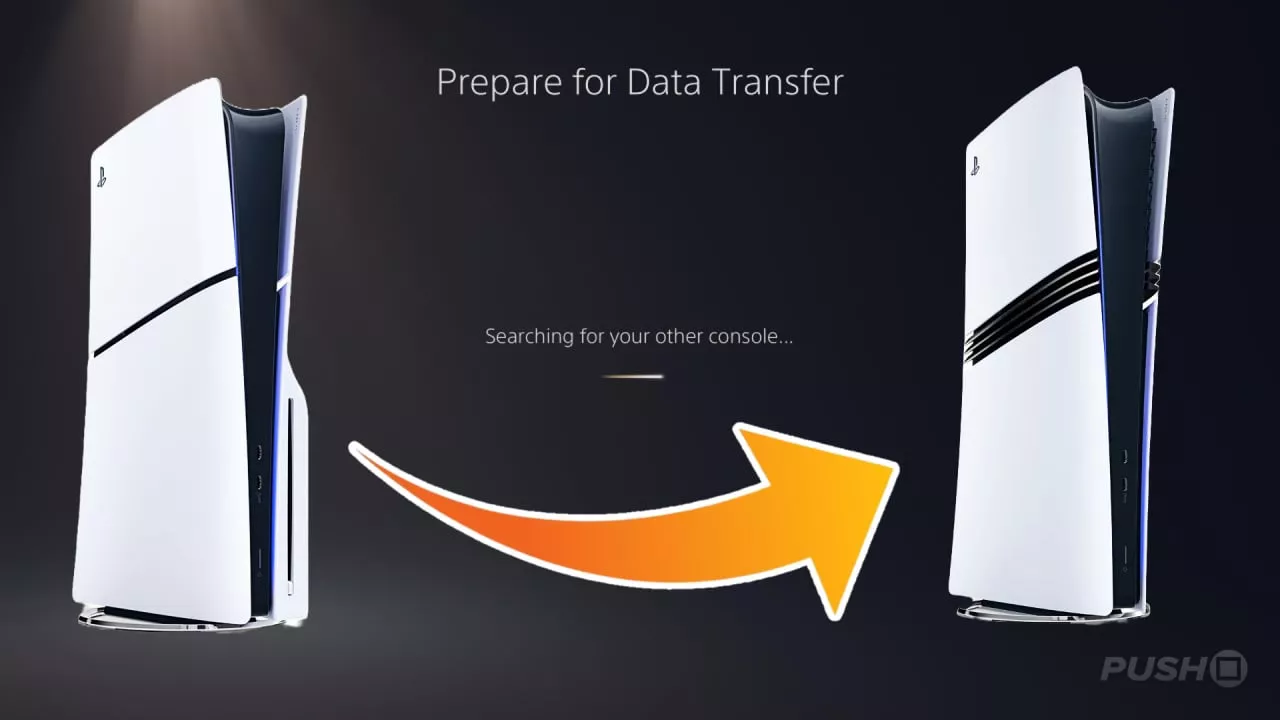
The easiest method to transfer data from a PS5 to a PS5 Pro is through the Data Transfer feature found in the console's settings. First, ensure that both consoles are powered on and connected to the internet on the same network. On your PS5 Pro, head to the ‘Settings’ menu, navigate to ‘System Software,’ and select ‘Data Transfer.’ Follow the on-screen instructions, which will guide the PS5 Pro to search for and connect to your base PS5 over the internet. Once connected, the process transfers all data automatically.
### What Gets Transferred?
During this data transfer, your PS5 Pro will inherit:
- Your user profile and account information
- All console settings from the base PS5
- Games installed on the internal SSD
- All saved game data
- Screenshots and video clips stored on the internal SSD
This method ensures a complete migration of your data, settings, and media from the base PS5 to your new PS5 Pro, either during the initial setup or from the settings menu post-setup.
### Alternate Methods Without a Base PS5
If you plan on selling or giving away your base PS5 before acquiring a PS5 Pro, you still have options for transferring your data:
1. **Using an External SSD**: Before parting with your base PS5, purchase an SSD and transfer your games onto it. After removing this SSD from the base console, it can be connected to your PS5 Pro. Once connected, transfer the data from the SSD to the console’s internal storage to regain access to your games.
2. **Re-Downloading Games**: If acquiring an additional SSD is not feasible, the alternative is to log into your PSN account on the new PS5 Pro and re-download each game. This method is time-consuming, especially if you have numerous games or slow internet speeds, but it ensures you retain access to your purchased games.
### Transferring Save Data Without a Base PS5
Transferring saved game data without having the original PS5 involves using the PS Plus service. This method relies on PS Plus' cloud save feature, which requires an active subscription. Before transitioning to the PS5 Pro:
- Subscribe to PS Plus (even for a month if not already a member).
- Upload all your saved data to the PS Plus cloud from your base PS5.
- After setting up your PS5 Pro, go to the Settings, access the cloud storage, and download your save data.
This cloud service is critical as it is the only way to back up and transfer save data without direct access to the original console hardware, given that saving to an external SSD or USB is not supported.
### Tips and Tricks
- Ensure both consoles are updated to the latest system software to avoid compatibility issues during the data transfer process.
- Keep both consoles close to the router or connected via Ethernet to speed up the transfer process.
- Consider scheduling the transfer at a time when network use is minimal to maximize the transfer speed.
Whether you are performing a direct transfer or managing the process without the original PS5 due to logistical reasons, these methods will help you maintain continuity in your gaming experience as you upgrade to a more robust console. Each approach offers a workaround depending on your situation, providing flexibility and ensuring you can jump back into your favorite games without losing progress.

You must be logged in to post a comment!