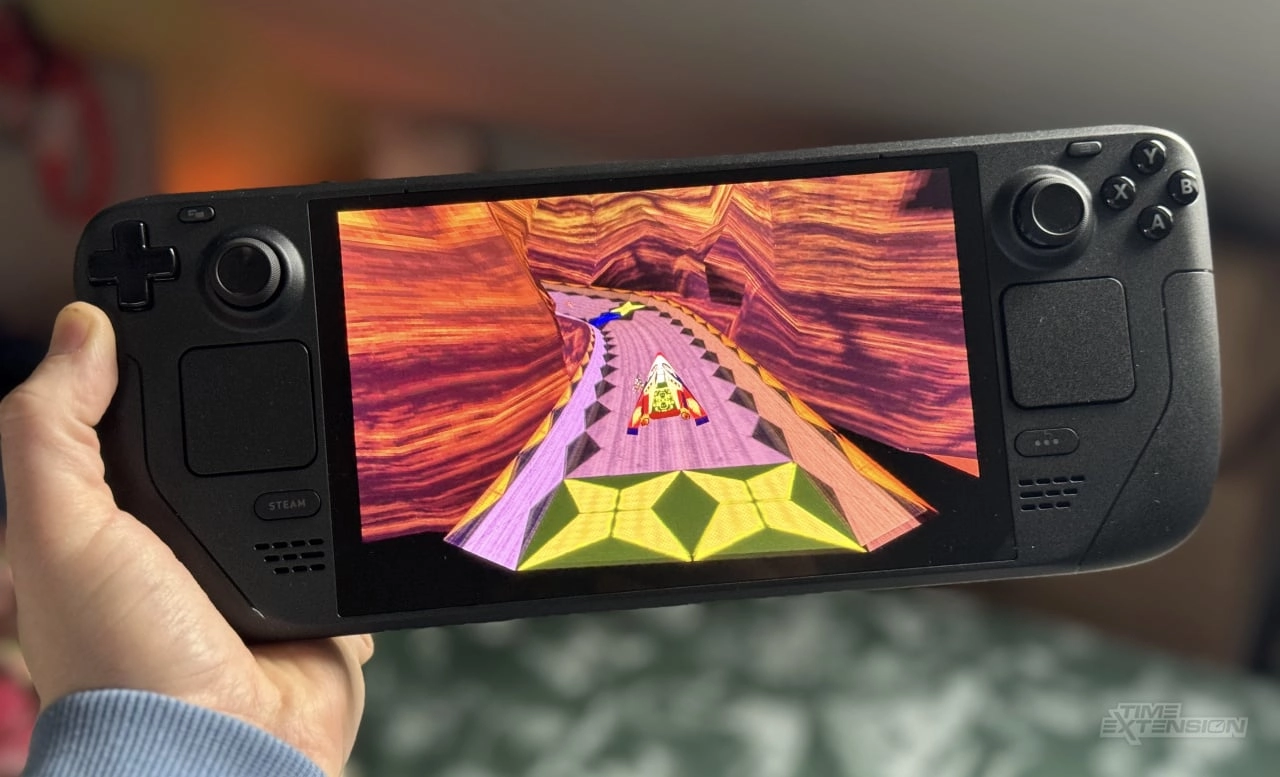
The original PlayStation's WipEout captivated an entire generation with its high-speed, anti-gravity racing, and it became a definitive title that showcased what the console was capable of. Now, with WipEout Phantom Edition, the experience has been transported to modern PCs, offering upgraded HD graphics, an uncapped frame rate, extended draw distance, refined control schemes, and enhanced audio. While the Phantom Edition is primarily designed for PC gaming, it is perfectly playable on the handheld gaming PC, the Steam Deck, with a few tweaks.
The first step in this process is to switch your Steam Deck into Desktop Mode. To do this, you simply hold down the power button on your device and choose 'Switch to Desktop' from the menu that appears. Once in Desktop Mode, you might need to install the Firefox browser if you haven't yet. This is easily accomplished by selecting the Firefox icon on your screen.
After setting up your browser, head to the WipEout Phantom Edition's GitHub page: https://github.com/wipeout-phantom-edition/wipeout-phantom-edition. Here, you will download the latest release of the game. Proceed to the Downloads folder to locate the downloaded zip file and extract its contents.
Next, you will need a copy of the original PS1 WipEout. It is highly recommended that you use your own physical copy for this, legally ripping it to create necessary files. The version of the game you use does not affect this process, even though different regional versions may contain different musical tracks. Upon obtaining the appropriate .bin and .cue files from your copy, ensure they are unzipped and then copy them to the 'diskimages' folder located within the extracted WipEout Phantom Edition folder.
The next phase involves adding the game to Steam. Find the 'wipeout.exe' file from the extracted game folder, right-click, and select 'Add to Steam.' After accomplishing this, revert to Gaming Mode on your Steam Deck, and locate WipEout Phantom Edition in your library under the 'non-Steam' games section.
Once in Steam, navigate to the game's properties and enable compatibility features. You should ensure that the 'Force the use of a specific Steam Play compatibility tool' option is ticked and that 'Proton Experimental' is selected. This will allow the game to run smoothly on the Linux-based Steam Deck.
Launching WipEout Phantom Edition for the first time, you will be greeted with an initial setup consisting of several screens of text. This is a normal part of the setup process and occurs only once.
For those wishing to beautify their game's presentation, adding artwork to WipEout Phantom Edition in Steam is an option. By utilizing Decky Loader—a tool that unlocks additional customization features on your Steam Deck—you can personalize the game's artwork in your library. Drop back into Desktop Mode to install Decky Loader through Konsole, the system’s command line tool. Simple instructions are available on the web, and after a quick setup, you can enrich your library visuals right from the Gaming Mode interface.
After the Decky Loader is in place, locate the SteamGridDB plugin to source and apply official artwork for the game. You will be able to modify every visual aspect of the game's presence in the library, including cover art, hero images, and logos. Make sure you're searching for artwork specific to the original 1995 release to maintain an authentic look.
With all these steps complete, your Steam Deck is now equipped to play the WipEout Phantom Edition. This upgraded version of the classic game not only respects the nostalgia for the original but revitalizes it with contemporary enhancements, making it an essential addition for retro fans and speed enthusiasts alike.

You must be logged in to post a comment!